
First Time Trellis Setup
- Go to app.gotrellis.com. On the login screen, click Sign Up at the bottom of the page.
- Enter your work email address and password, to create your Trellis account.
- Once your account is created, Trellis will prompt you to connect your Amazon Advertising and Seller Central accounts.

- On the Connect Amazon Account page. You’ll be prompted to connect your Advertising and Seller APIs. These APIs are important to ensure that Trellis is able to connect to and analyze both advertising data and organic product data.
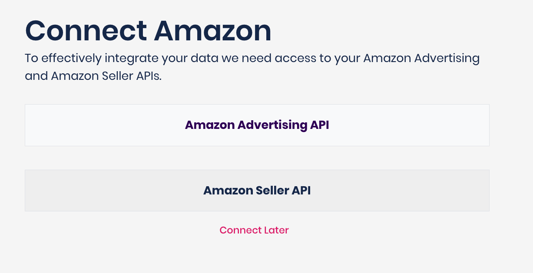
- After clicking on each API connection prompt, you'll be brought to Amazon to grant Trellis access
- After the connection is successful, you’ll see a “Connection Successful” message and your linked marketplace information in the onboarding screen. Your products and campaigns will automatically begin syncing. This process can take 12–24 hours, depending on account size.
💡 Tip: You can safely leave Trellis during the sync — data will continue importing in the background, and you’ll receive an email once your catalog and campaigns are ready.
Existing Account Step
-
Go to Settings → Amazon Connect in your Trellis dashboard.
-
Click Connect Amazon Advertising Account.
-
You’ll be redirected to Amazon’s secure login portal — sign in using your Admin-level Amazon Ads credentials.
-
Grant Trellis access to your Advertising, Seller Central, and Product Data scopes.
-
Once the connection is successful, you’ll see a red “Reauthorize” status beside each marketplace, and confirmation of the region and Seller ID

💡 Tip: If you manage multiple brands or marketplaces, you can connect additional accounts under the same organization. Each one syncs separately so you can manage performance by region or brand.
Looking to Add Additional Brands or Profiles?
-
Go to Settings → Amazon Connect in your Trellis dashboard.
-
Scroll down to Trellis Profile Summary, here you can see all connected profiles and Add Profiles for additional accounts you want connected.
