
Video Walkthrough - How to make Bulk Action Changes to Media Plans
🧭 Step 1: Access Bulk Actions
You can access bulk actions from either:
-
The Advertising Report, or
-
A Category View within the Advertising Dashboard

💡 Tip: Use filters first to narrow down which campaigns you want to update. Filters are powerful for segmenting by performance, tag, strategy, or status so you only adjust the relevant media plans.
✅ Step 2: Select the Media Plans
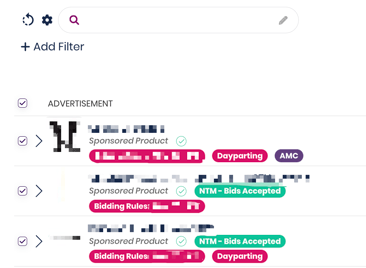
Use the checkboxes next to each campaign or media plan to select them.
Once selected, click the Bulk Actions button to open the dropdown.
⚙️ Step 3: Understand Each Bulk Action Option
Below is a quick reference table outlining what each bulk action does and when to use it.
| Bulk Action | Description |
|---|---|
| Pause Media Plan | Pauses active campaigns immediately, stopping ad spend until re-enabled. |
| Enable Media Plan | Reactivates paused campaigns and resumes ad delivery. |
| Update Optimal ACOS Range Low | Adjusts the lower end of your ACOS range, tightening or relaxing profitability limits. |
| Update Optimal ACOS Range High | Updates the upper end of your ACOS range, allowing higher spend tolerance for optimization. |
| Update Budget | Changes the daily campaign budget for selected media plans. |
| Update Plan Category | Moves selected ads to a different product category for better organization or reporting alignment. |
| Add Media Plan Tags | Adds tags (like “Top Seller” or “Q4 Promo”) for easier filtering and bulk management. |
| Remove Media Plan Tags | Removes existing tags from selected plans. |
| Schedule Budget Updates | Lets you set future-dated budget changes (e.g., increase spend during Prime Day). |
| Cancel Scheduled Budget Updates | Cancels any previously scheduled budget updates that haven’t yet taken effect. |
| Update Dayparting | Adjusts what times of day your ads have bidding multipliers applied. |
| Update Bidding Rules | Applies or replaces rule programs (created in Configuration → Rules) to selected campaigns. |
| Update Budget Rules | Adds automated logic that controls how budgets scale based on performance. |
| Update Weekday Parting | Adjusts which days of the week your ads have more or less budget, so you can increase spend during peak days. |
| Update Bidding Algorithm | Switches campaigns between different optimization modes (e.g., ROAS Boost, Growth Max, Product Launch). |
| Update Bidding Modifiers | Changes placement multipliers (Top of Search, Product Pages, Rest of Search, AMC Audiences) in bulk. |
| Import Keywords and Targets | Import campaigns into Trellis so that Trellis can begin giving bid suggestions (only needs to be done on campaigns created outside of Trellis) |
| Manage Imported Media Plans | Enables Trellis to take control of campaigns previously imported from Amazon. |
| Unmanage Imported Media Plans | Removes Trellis optimization from imported campaigns while leaving them live in Amazon. |

💾 Step 4: Apply Changes
After choosing your bulk action and setting the new values (e.g., updated ACOS range or budget), click Apply Updates.
Trellis will apply the changes across all selected campaigns.
💡 Note: Changes sync to Amazon within minutes and appear in your reports shortly after.
📊 Step 5: Review Updates
Return to your Advertising Report or Category View to verify that updates were successfully applied.
You can confirm by checking:
-
New ACOS range values
-
Updated budgets
-
Adjusted strategy or rule assignments
✅ Best Practices
-
Use filters first to find groupings of ads to action in bulk
-
Group campaigns by tag or category for easier management.
-
Review budget and ACOS limits before applying to ensure they align with performance goals.
Video Walkthrough - How to make Bulk Actions to Targets & Search Terms