---
title: How to Create Price Offsets
description: how-to-create-price-offsets
---
[Skip to content](https://support.gotrellis.com/en/knowledge-base/how-to-create-price-offsets#main-content)
[](https://gotrellis.com/)
- [Home](https://gotrellis.com/)
Show submenu for Home
- [Advertising](https://gotrellis.com/advertising-ppc-automation/)
- [Dynamic Pricing](https://gotrellis.com/dynamic-pricing/)
- [AI-Content Optimization](https://gotrellis.com/product-content/)
- [Promotions](https://gotrellis.com/promotions/)
- [Pricing](https://gotrellis.com/pricing/)
- [Blog](https://gotrellis.com/blog/)
- [Contact](https://gotrellis.com/contact-us/)
Open main navigation
Close main navigation
- [Home](https://gotrellis.com/)
Show submenu for Home
- [Advertising](https://gotrellis.com/advertising-ppc-automation/)
- [Dynamic Pricing](https://gotrellis.com/dynamic-pricing/)
- [AI-Content Optimization](https://gotrellis.com/product-content/)
- [Promotions](https://gotrellis.com/promotions/)
- [Pricing](https://gotrellis.com/pricing/)
- [Blog](https://gotrellis.com/blog/)
- [Contact](https://gotrellis.com/contact-us/)
- [Log In](https://app.gotrellis.com/)
[Log In](https://app.gotrellis.com/)
How can we help you?
- There are no suggestions because the search field is empty.
1. [Trellis Knowledge Base](https://support.gotrellis.com/en/knowledge-base?hsLang=en)
2. [Dynamic Pricing](https://support.gotrellis.com/en/knowledge-base/dynamic-pricing?hsLang=en)
# How to Create Price Offsets
## Goal: Maintain consistent pricing relationships between different product variations—such as pack sizes—by applying automated price offsets within a shared pricing plan.
#### **Step 1: Group Products Under a Single Pricing Plan**
Add all related pack sizes to the **same pricing plan**.
It doesn’t matter which product’s plan you start from — what matters is that all variations live inside **one shared plan**.
**How it works:**
- The offset is calculated based on the **main product’s price**.
- The system can set other products’ prices **outside the plan’s min/max**, if needed.
- The main product will **always** stay within the plan’s defined min/max limits.
This setup ensures the plan has a single pricing baseline that all variations follow.
#### **Step 2: Open the Price Offset Tool**
Once all products are added to the pricing plan:
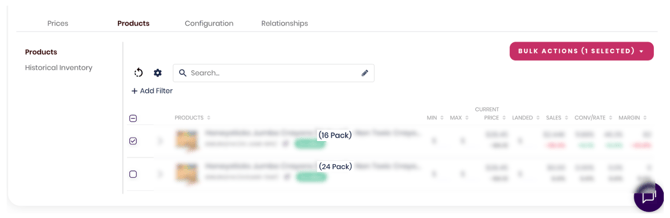
1. Go to the **Products** tab within the plan.
2. Select the product whose price you want to adjust.
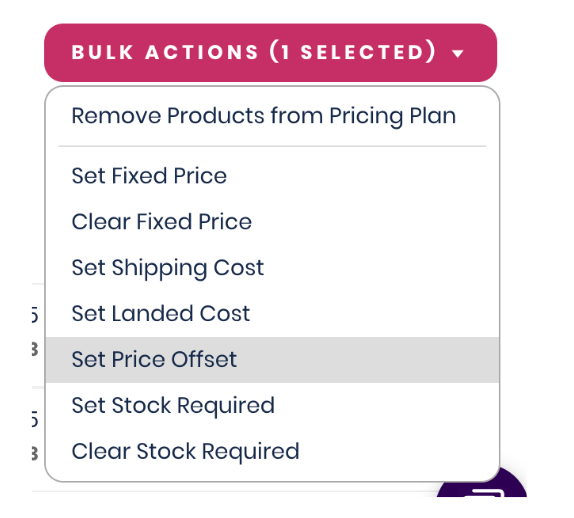
3. Open **Bulk Actions → Set Price Offset**.
This opens the **Offset Configuration** window, where you’ll define how this product should relate to the rest of the plan’s pricing.
#### **Step 3: Set the Offset Value**
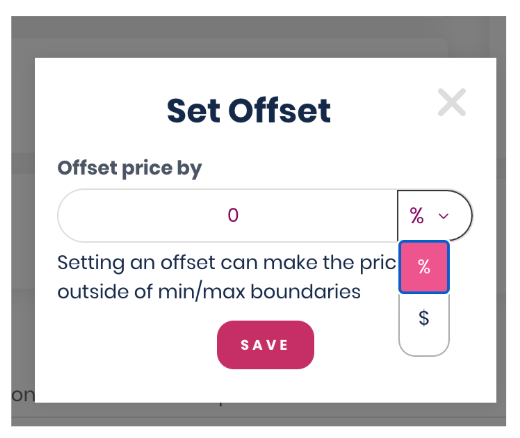
In the **Set Offset** window, choose how the selected product’s price should track the plan price.
You can set the offset as:
- A **percentage (%)** difference
- A **fixed dollar ($)** amount
**What happens next:**
- The system automatically adjusts the product’s price based on the pricing plan’s logic.
- The product will always maintain the specified offset as the plan price changes.
- Price updates occur dynamically, preserving the relationship you’ve defined.
- [Getting Started](https://support.gotrellis.com/en/knowledge-base/getting-started?hsLang=en)
- [Advertising](https://support.gotrellis.com/en/knowledge-base/advertising?hsLang=en#main-content)
- [Media Plan Settings](https://support.gotrellis.com/en/knowledge-base/advertising?hsLang=en#media-plan-settings)
- [How To](https://support.gotrellis.com/en/knowledge-base/advertising?hsLang=en#how-to)
- [FAQs](https://support.gotrellis.com/en/knowledge-base/faqs?hsLang=en)
- [Dynamic Pricing](https://support.gotrellis.com/en/knowledge-base/dynamic-pricing?hsLang=en#main-content)
- [Pricing Strategies](https://support.gotrellis.com/en/knowledge-base/dynamic-pricing?hsLang=en#pricing-strategies)
[](https://gotrellis.com/)
[mailto:support@gotrellis.com](mailto:support@gotrellis.com)
Copyright © 2025, Trellis Corporation