
Navigation
To open the pricing reporting view:
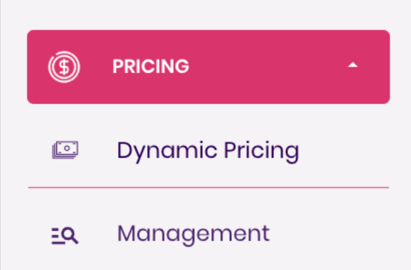
- Go to the Pricing dropdown in the left-side navigation panel.
- Select Dynamic Pricing — this opens the Pricing Dashboard.
Once the dashboard is open, you’ll see four main components:
- Filters & Lenses
- Metrics Table
- Pricing Plans Graph
- Detailed Table Review
Each section helps you understand how your pricing plans are performing and where to take action.
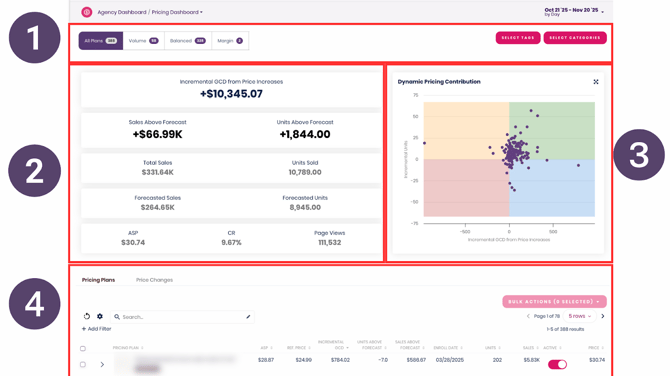
1. Filters & Lenses
The Filters section lets you narrow the data shown in the Metrics Table and Pricing Plans Graph.
Strategy Filters
The first filter group lets you filter pricing plans by the strategy they use, such as:
- Volume-focused strategies
- Balanced strategies
- Margin-focused strategies
This allows you to compare how different strategies are performing against each other (e.g., “How are my volume plans doing vs. my margin plans?”).

Category & Tag Filters
The second filter group allows you to filter pricing plans by:
- Product category
- Assigned pricing plan tags
This helps you drill into specific segments, such as reviewing performance for a specific brand, division, or product grouping.

2. Metrics Table
The Metrics Table gives you a high-level view of your pricing plan performance.
Key metrics include:
Gross Contribution Dollars (GCD)
If positive, GCD shows revenue gained from price increases.
If negative, it becomes Volume Retention Cost (VRC), reflecting revenue lost due to price decreases.
Sales Above Forecast
Measures how actual sales compare to expected sales based on forecast models.
Units Above Forecast
Shows how many more (or fewer) units were sold compared to forecasted units.
This metric effectively represents the impact of price changes on conversion rate, expressed in unit terms.
For detailed definitions, see:
DP Dashboard Glossary
3. Pricing Plans Graph
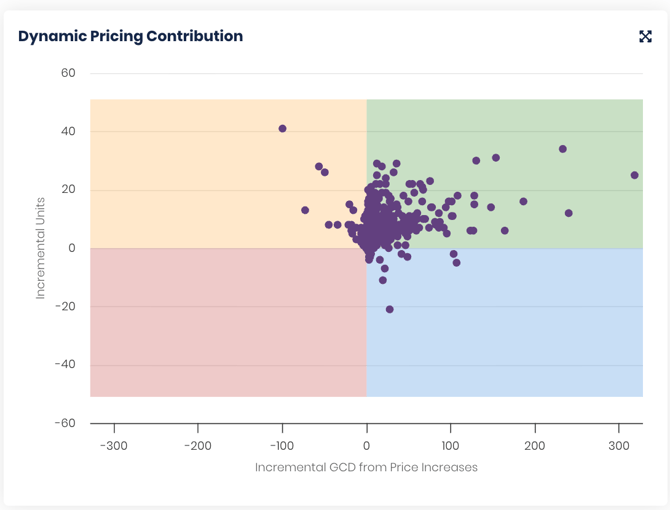
The Pricing Plans Graph plots each pricing plan across two axes:
- GCD (value impact of price changes)
- Incremental Units (conversion impact of price changes)
The graph has four quadrants:
Green Quadrant — GCD Up, Units Up
Price ↑ and demand ↑ simultaneously.
Indicates strong plan performance.
Blue Quadrant — GCD Up, Units Down
Price ↑ but demand ↓.
Typical of margin-focused strategies aiming for higher profitability.
Orange Quadrant — Units Up, GCD Down
Volume ↑ but price ↓.
Typical of volume-focused strategies aiming to boost unit sales.
Red Quadrant — GCD Down, Units Down
Both value and demand ↓.
Plans here require attention and potential adjustments.
This graph is the fastest way to identify which plans are outperforming or underperforming.
4. Detailed Table Review
The bottom portion of the dashboard includes a full table of all pricing plans and their performance details.
In this section, you can:
- Sort any column
- Filter by any relevant attribute
- Review SKU-level and plan-level pricing changes
- Identify trends or anomalies in plan performance
Just like all tables in Trellis, you can customize the view to focus on the metrics that matter most to you.