---
title: How to Set Up Bidding Rules
description: How to set up bidding rules
---
[Skip to content](https://support.gotrellis.com/en/knowledge-base/how-to-set-up-bidding-rules#main-content)
[](https://gotrellis.com/)
- [Home](https://gotrellis.com/)
Show submenu for Home
- [Advertising](https://gotrellis.com/advertising-ppc-automation/)
- [Dynamic Pricing](https://gotrellis.com/dynamic-pricing/)
- [AI-Content Optimization](https://gotrellis.com/product-content/)
- [Promotions](https://gotrellis.com/promotions/)
- [Pricing](https://gotrellis.com/pricing/)
- [Blog](https://gotrellis.com/blog/)
- [Contact](https://gotrellis.com/contact-us/)
Open main navigation
Close main navigation
- [Home](https://gotrellis.com/)
Show submenu for Home
- [Advertising](https://gotrellis.com/advertising-ppc-automation/)
- [Dynamic Pricing](https://gotrellis.com/dynamic-pricing/)
- [AI-Content Optimization](https://gotrellis.com/product-content/)
- [Promotions](https://gotrellis.com/promotions/)
- [Pricing](https://gotrellis.com/pricing/)
- [Blog](https://gotrellis.com/blog/)
- [Contact](https://gotrellis.com/contact-us/)
- [Log In](https://app.gotrellis.com/)
[Log In](https://app.gotrellis.com/)
How can we help you?
- There are no suggestions because the search field is empty.
1. [Trellis Knowledge Base](https://support.gotrellis.com/en/knowledge-base?hsLang=en)
2. [Advertising](https://support.gotrellis.com/en/knowledge-base/advertising?hsLang=en)
3. [How To](https://support.gotrellis.com/en/knowledge-base/advertising?hsLang=en#how-to)
# How to Set Up Bidding Rules
## Create and manage automated bidding rules that tell Trellis how to adjust bids based on your performance conditions.
### **Overview**
Bidding rules give you flexibility and control over how Trellis optimizes bids.
They let you define *when* and *how* bids are adjusted, based on campaign performance metrics such as ACOS, ROAS, or clicks.
You can apply rules during campaign creation or directly in Configuration later.
---
#### 🧭 Step 1: Open the Rules Library
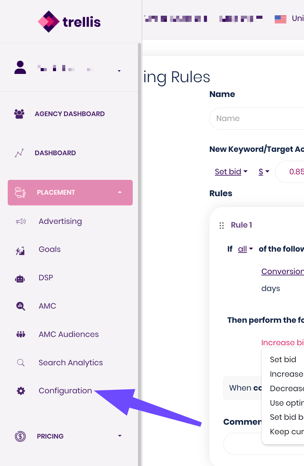
From the **left-hand navigation**, go to
➡️ **Configuration → Rules**
This section contains your **Rules Library**, where you can view, edit, or create new bidding rules.
---
#### ➕ Step 2: Create a New Rule
Click **Create New Rule** to open the setup window.
Give your rule a clear **name** and optional **Comment for description.**
💡 *Tip:* Use descriptive naming (e.g., “High ACOS Bid Decrease Rule”) to easily identify rule behavior later.
---
#### ⚙️ Step 3: Define Conditions
Conditions determine when your rule activates.
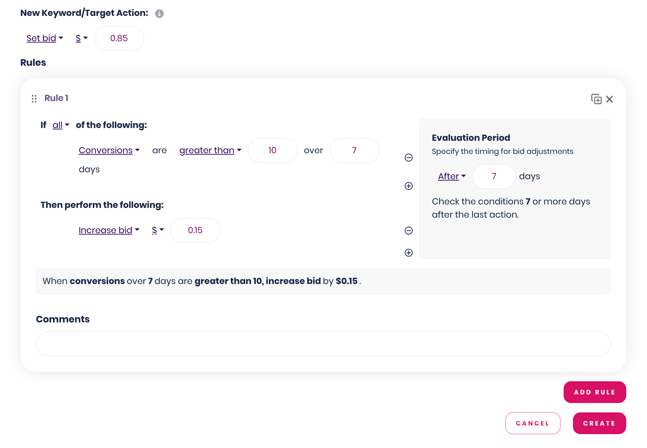
Each condition includes:
- **Metric** – e.g., ACOS, ROAS, Clicks, Conversions
- **Operator** – greater than, less than, equals
- **Threshold** – the performance value that triggers your action
- **Lookback Window** – how many past days Trellis reviews before triggering
Example:
> If **ACOS \> 35%** over the **past 7 days**
---
### 🆕 New Keyword/Target Action
This setting defines what Trellis does when new keywords or targets are added to a media plan that uses this rule.
You can choose to:
- **Set a fixed bid** for new keywords
- **Use the Optimal Bid** — the bid automatically calculated by the Trellis algorithm based on your campaign’s current parameters
💡 *Tip:* Using **Optimal Bid** ensures new targets start with data-backed bid values that align with your ACOS range and optimization strategy.
---
#### 🎯 Step 4: Define Actions
Actions tell Trellis what to do when your rule’s conditions are met.
You can choose to:
- **Increase bid by X%**
- **Decrease bid by X%**
- **Set bid to a specific amount ($)**
- **Use Optimal Bid** — allows Trellis to automatically apply its suggested bid for that target
---
#### 🔁 Step 5: Set Frequency and Evaluation
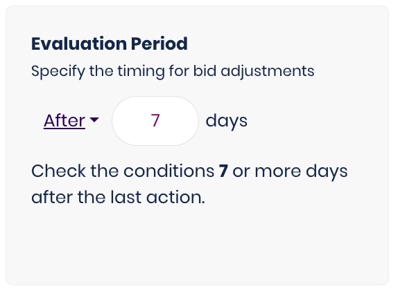
Define how often Trellis should evaluate this rule and how much past data to consider.
- **Evaluation Frequency:** Choose how often the rule runs (e.g., daily, weekly).
- **Lookback Period:** Specify how many previous days Trellis looks at when evaluating the condition (e.g., 7 days).
---
#### ➕ Step 6: Add Additional Rules
You can add multiple rules within the same set to handle different situations.
For example:
- Rule 1: *If ACOS \> 35% → Decrease bid by 10%*
- Rule 2: *If ACOS \< 20% → Increase bid by 10%*
To add another rule:
1. Click **Add Another Rule** to add more rules to the overall rule set.
2. Define new conditions and actions following the same process.
3. Save each rule to the rule set to give it more complex logic.
---
#### 💾 Step 7: Save & Assign
Click **Save Rule** to add it to your Rules Library.
You can now assign this rule:
- During **Media Plan creation** under *Advanced Settings → Rules Program*, or
- In an existing campaign under **Configuration → Advanced Options \> Rules Program**
****
---
#### 📊 Step 8: Monitor Rule Performance
Once active, Trellis automatically triggers your rules based on campaign performance.
You can review results:
- In the **Advertising Dashboard → Ad Report** (campaign-level overview)
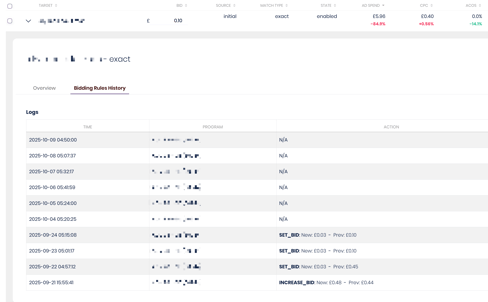
- Or at the **keyword level**, within each advertisement, to see:
- Which bidding rules are currently active
- When each rule was last triggered
---
### ✅ Best Practices
- Ensure your rules cover all possible situations, as the rules will follow the logic you set out **exactly**.
- Use **Optimal Bid** for new targets to stay aligned with algorithm logic.
- Avoid overlapping or contradictory rules on the same metrics.
- Review rules monthly to fine-tune behavior as campaigns evolve.
- [Getting Started](https://support.gotrellis.com/en/knowledge-base/getting-started?hsLang=en)
- [Advertising](https://support.gotrellis.com/en/knowledge-base/advertising?hsLang=en#main-content)
- [Media Plan Settings](https://support.gotrellis.com/en/knowledge-base/advertising?hsLang=en#media-plan-settings)
- [How To](https://support.gotrellis.com/en/knowledge-base/advertising?hsLang=en#how-to)
- [FAQs](https://support.gotrellis.com/en/knowledge-base/faqs?hsLang=en)
- [Dynamic Pricing](https://support.gotrellis.com/en/knowledge-base/dynamic-pricing?hsLang=en#main-content)
- [Pricing Strategies](https://support.gotrellis.com/en/knowledge-base/dynamic-pricing?hsLang=en#pricing-strategies)
[](https://gotrellis.com/)
[mailto:support@gotrellis.com](mailto:support@gotrellis.com)
Copyright © 2025, Trellis Corporation