
Overview
Your ACOS Range and Optimization Settings guide how Trellis manages bids and spend for each campaign.
You can view and edit these settings from the Configuration section — either for a single campaign or in bulk across multiple campaigns using the Ad or Category Reports.
This section explains how to set realistic ACOS targets, keep them aligned with your conversion data, and update settings efficiently.
🎯 Setting Realistic ACOS Ranges
Your ACOS (Advertising Cost of Sales) range defines how aggressively Trellis can bid while maintaining profitability or growth.
Why It Matters
-
A low ACOS range tells Trellis to bid conservatively — great for profitability but may restrict visibility.
-
A high ACOS range allows more aggressive bidding — ideal for growth but can increase ad spend.
Best Practices
-
Check your historic ACOS: Use the Ad Report to see your average ACOS over the past 30–60 days.
-
Factor in your conversion rate and CPC:
-
If your CPC and conversion rate make a 10% ACOS unrealistic, set a higher range (e.g., 20–30%) to allow Trellis to compete effectively.
-
-
Set a reasonable width: A 10–20% range gives Trellis flexibility to adapt to performance trends.
-
Avoid constriction: Setting ACOS too low limits how often Trellis can bid — campaigns may underspend or lose placements.
💡 Example:
If your average CPC is $1.50 and your conversion rate is 10%, a 15% ACOS is mathematically more achievable than 5%, since each sale costs roughly $15 in clicks.
⚙️ Updating ACOS Ranges and Optimization Strategy
You can update ACOS ranges and optimization settings in several places:
| Where | What You Can Do |
|---|---|
| Configuration Section | Adjust ACOS ranges or change the optimization strategy for individual campaigns. |
| Ad Report | Use bulk actions to update ACOS ranges and strategies across multiple campaigns at once. |
| Category View |
Apply updates to all campaigns within a category for consistent targeting and optimization. |
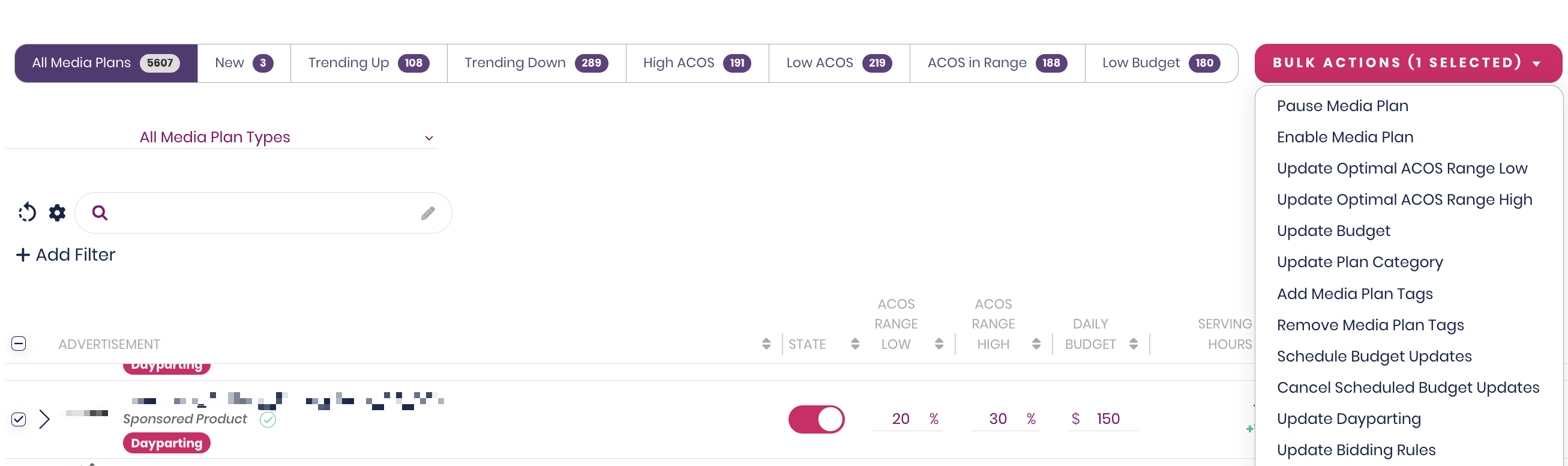
💡 Tip: Use bulk updates when standardizing ACOS ranges across similar product lines (e.g., Premium SKUs or Seasonal products).
⚡ Optimization Settings (Quick Overview)
Your Optimization Strategy determines how Trellis operates within your ACOS range:
| Strategy | Behavior | Use Case |
|---|---|---|
| ROAS Boost | Bids conservatively near the lower end of your ACOS range. | Profit-focused campaigns. |
| GrowthMax | Targets the upper end of your ACOS range for volume. | Scaling or market-share goals. |
| Product Launch | Spends more aggressively at the start to drive awareness. | New product launches. |
| Only Rules | Uses your custom rules for full manual control. | Advanced advertisers. |
💡 These settings can be changed individually or in bulk, and Trellis will automatically adjust bids according to the new configuration.
🧠 Tips for Better ACOS Management
| Tip | Why It Helps |
|---|---|
| Review ACOS monthly | Keeps campaigns aligned with performance trends. |
| Compare ACOS to conversion rate | Ensures your targets are achievable. |
| Use consistent ranges by category | Helps maintain predictable performance across product groups. |
| Start wider, then refine | Allows Trellis to collect enough data before narrowing your range. |