
Overview
Dashboards in Trellis give you a complete view of your performance across Advertising, Pricing, and Content modules.
Each dashboard is interactive — allowing you to filter, customize, and drill down into the exact data you care about.
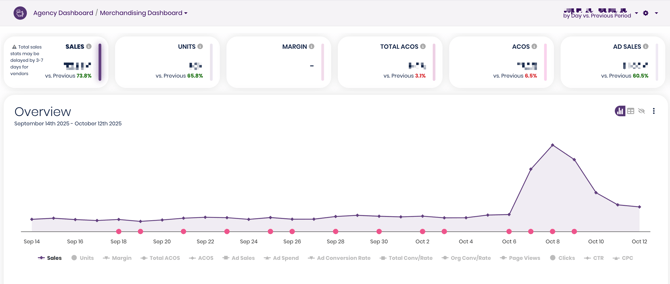
The example below shows the Merchandising Dashboard, which summarizes performance across all modules. You’ll see similar layouts within Advertising, Pricing, and Categories dashboards — each focused on its specific metrics.
🧭 How to Use the Dashboard
1️⃣ Customize Summary Tiles
In the top-right corner of the dashboard, click the three vertical dots (⋮) to customize which summary metrics appear — such as Sales, Units, ACOS, or Ad Spend.
This allows you to tailor the top section of your dashboard to highlight the KPIs that matter most to your goals.
💡 Example: You might pin ACOS and Ad Sales if you’re focused on ad efficiency, or Units and Margin if you’re tracking product-level performance.
2️⃣ Adjust Table Metrics
Below the chart view, you’ll see the data table where performance is broken down by Category, Product, or Campaign.
Click the ⚙️ gear icon near the search bar to select which metrics you want to display in the table view.
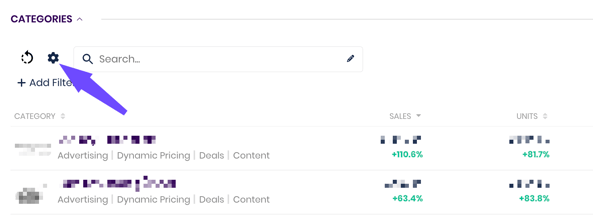
You can show or hide columns like:
-
Sales, Units, and Margin
-
Ad Spend and Cost
-
CTR, CPC, or ROAS
This customization helps simplify your view — whether you’re analyzing advertising results or monitoring catalog-wide trends.
3️⃣ Filter and Search
Use the Search Bar or Add Filter option to narrow results. You can filter by:
-
Category or Tag
-
Product or ASIN
-
Ad Type or Media Plan
-
Date Range
💡 Tags are especially useful for creating cross-category views — such as filtering to see only Seasonal Products or New Launches.
4️⃣ Drill Down Into Modules
Each dashboard in Trellis can be viewed at multiple levels:
-
Merchandising Dashboard: High-level overview of all modules combined.
-
Advertising Dashboard: Metrics specific to campaigns and ACOS performance.
-
Pricing Dashboard: Shows pricing changes, elasticity, and revenue impact.
-
Category Dashboards: Focused on performance within a specific product category.
You can drill deeper from any summary view — click into a category or campaign to open its detailed dashboard.
5️⃣ Access Detailed Reports
For a full, line-by-line breakdown of your data:
Go to Left Navigation → Reports → Product, Ad, or Target Reports.
These reports show all SKUs, campaigns, or targets in list format — ideal for advanced analysis or exporting data to Excel.
🧩 Tips
| Task | Tip |
|---|---|
| Compare date ranges | Use the top-right date picker to toggle between “vs. Previous Period” or “Custom Range.” |
| View optimization impact | You can filter on attributes like NTM - Bid Managed |
| Cross-check by module | The same filtering logic applies across Advertising, Pricing, and Content dashboards — use this to align performance views. |
Your dashboards update daily with synced data from Amazon. Product-level stats may show a 3–7 day delay depending on your vendor reporting schedule. If you are looking for real time reporting try using the Today View in the top right hand corner.